QR Code Scanner — How to Use It Online for Free
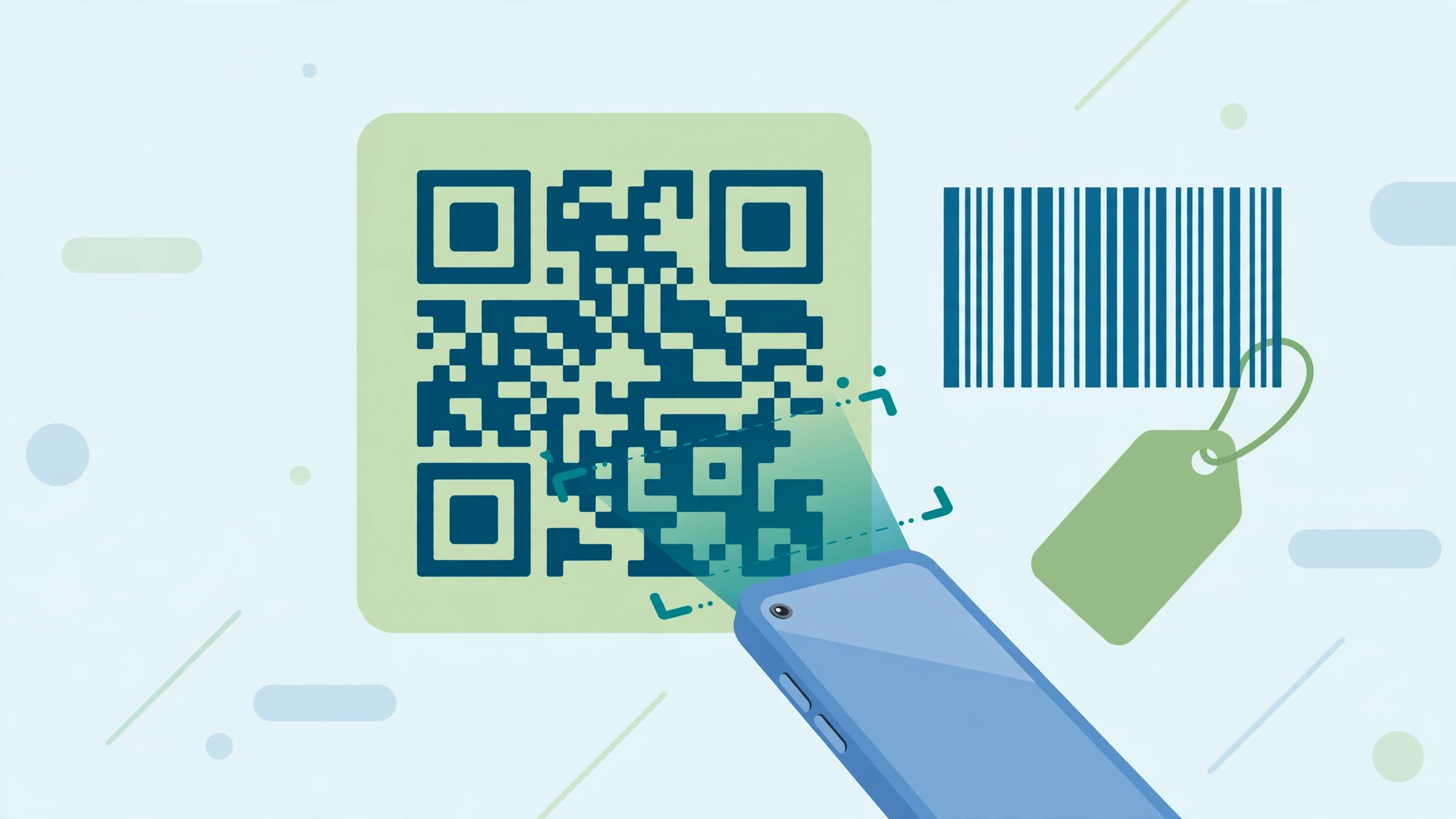
The QR Code Scanner reads the QR code hidden in a photo or screenshot and shows you the link or text inside it. No camera and no app are needed — useful when someone sends you a screenshot of a code, or a code arrives inside a document.
Scanning from an image is also the safe way to inspect a suspicious code: instead of your camera app opening whatever it holds, you see the actual link or text first and can decide whether to open it. That preview habit is worth building — a QR code is just a link you cannot read with your eyes.
How to use the QR Code Scanner
- Drop the photo or screenshot containing the QR code, or click to choose it.
- The tool reads the code automatically.
- See the link or text it contains.
- Copy it, or open the link if it is one.
A quick example
A friend forwards a screenshot of a payment QR code and you want to verify what it points to before using it. Load the screenshot here, read the payment id or link it shows, and confirm it matches your friend's details.
Tips for better results
- Check unexpected links letter by letter before opening them — look-alike spellings are a known trick.
- If a code will not scan, crop the image around it and try again.
- Screenshots of codes (rather than photos of screens) give the cleanest scans.
About QR codes and barcodes
QR codes and barcodes are both just data drawn for machines — a QR code stores text in a two-dimensional pattern of squares, while a barcode stores a number or code in lines of varying width. Phones scan QR codes with the ordinary camera, which is why they suit links, Wi-Fi and payments meant for the public. Barcodes need a scanner app or a till scanner, and suit stock, products and files you manage yourself. Whichever you create, test before you trust: print or display one copy, scan it with your own phone, and confirm it opens or reads exactly what you intended. A code that almost scans is a code that fails for everyone else.
Common questions
Why would I scan a photo instead of using my camera? Because often there is no physical code to point at — the code is inside a screenshot, a forwarded image, a PDF page or a photo someone sent you. This tool reads the code from the image itself.
The tool could not read my code. What helps? Use the sharpest, straightest version of the image you have: heavy blur, strong tilt, glare, or a code that fills only a tiny corner of the photo can defeat any scanner. Cropping the photo tightly around the code often fixes it.
Are my files uploaded to a server? No. The QR Code Scanner runs entirely in your browser — your file is processed on your own device and is never sent to ToolNest or anywhere else. Close the tab and everything is cleared.
One tool rarely finishes the whole job. The natural companions to this one are covered in the QR Code Generator guide and the Barcode Generator guide — between them, most code tasks can be handled end to end in the browser, with no installs and no accounts.